SSL Application
OpenResty Edge supports SSL/TLS offloading service, which implements SSL/TLS encrypted data offloading in OpenResty Edge, then forwards plaintext data to backend services. After the backend services complete processing, they return the results to OpenResty Edge for encryption before returning to the client.
SSL/TLS offloading service can reduce the computational burden on backend application servers and improve the overall system performance of backend services. Some legacy applications do not support SSL/TLS encryption. Through SSL/TLS offloading service, data encryption can be implemented without any modifications to the backend servers, enhancing application security.
By default, OpenResty Edge does not configure SSL/TLS proxy ports. You need to add the required SSL/TLS proxy ports in the gateway partition.
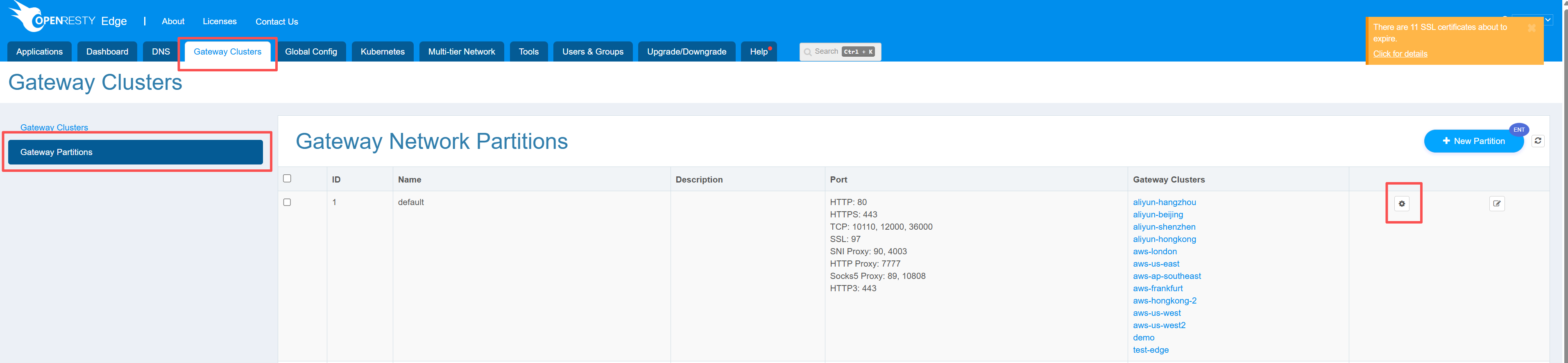
We navigate to the Gateway Cluster => Gateway Partition page, where we can see all partitions and their open ports of different types.
Click the Edit icon on the right side of the partition to enter the edit page.
We click “Add Port”, enter the port we wish to add, and select ssl as the port type.

Click Save, and we can see this port in the current list. At this point, the gateway nodes corresponding to this partition will listen on this port at the SSL/TLS layer.
We now navigate to Application => Stream, where we can see the already created Stream type applications.
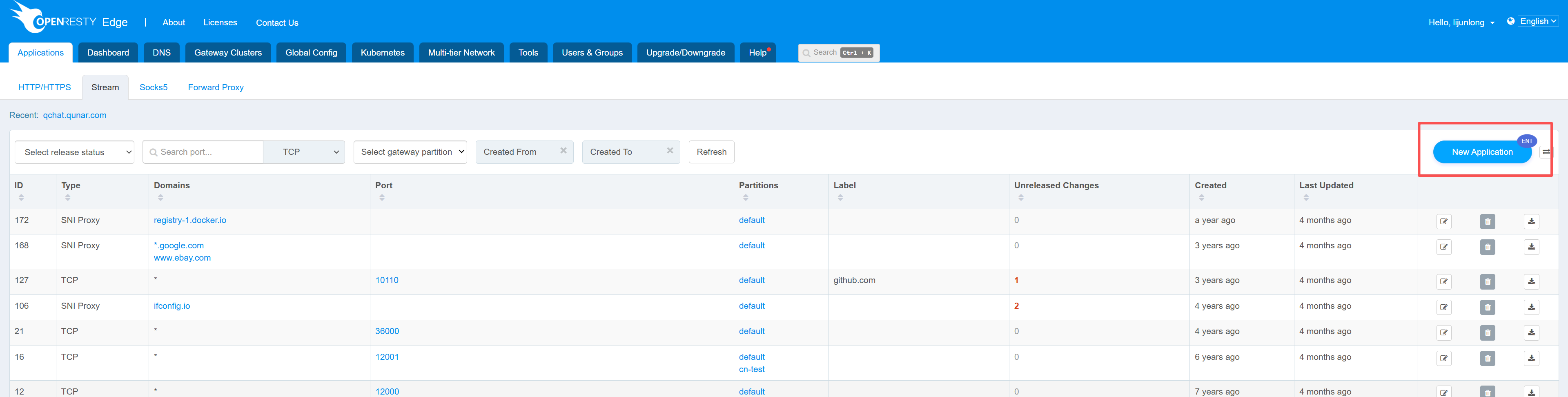
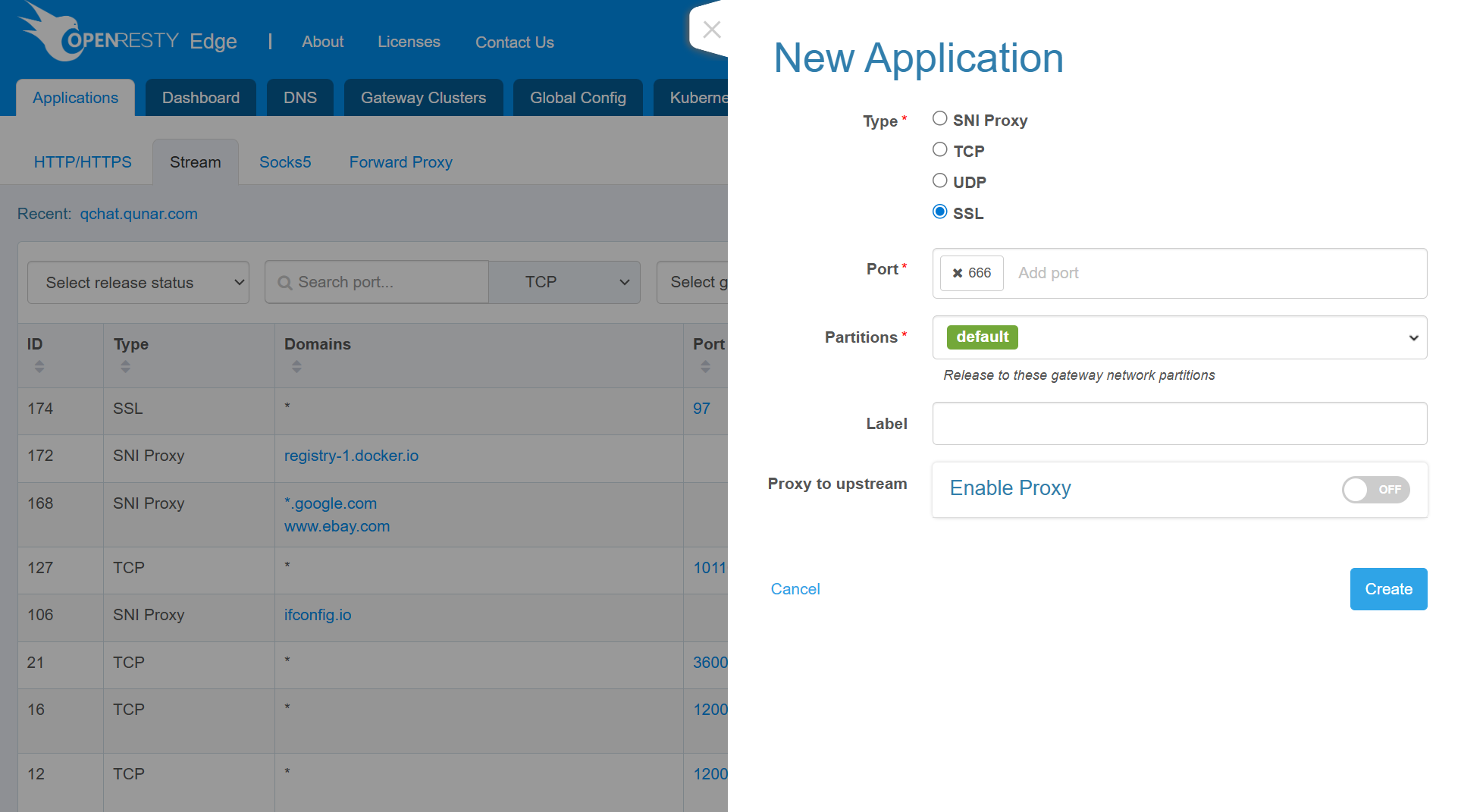
Click New Application, select SSL as the type, enter the port just added (you can also add more ports), click Save, and an SSL proxy application is created.
After creating the application, the main task is to configure proxy forwarding rules. We need to create an upstream first. On the upstream page, we can see the button to add a new upstream.
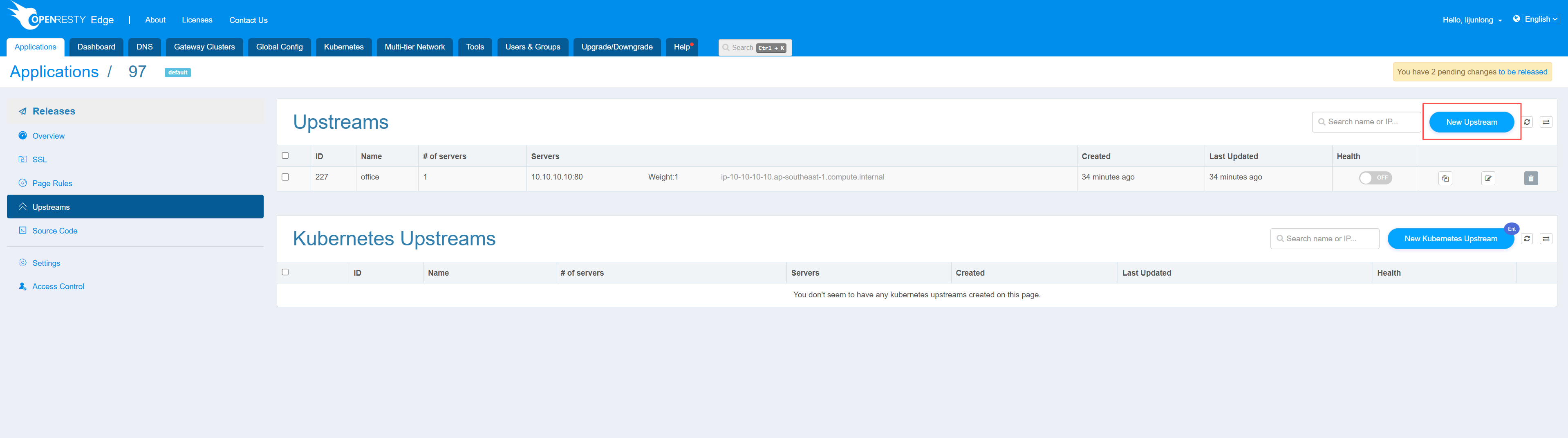
Click it to add a new upstream, enter the upstream name, and the address and port information of the upstream nodes.
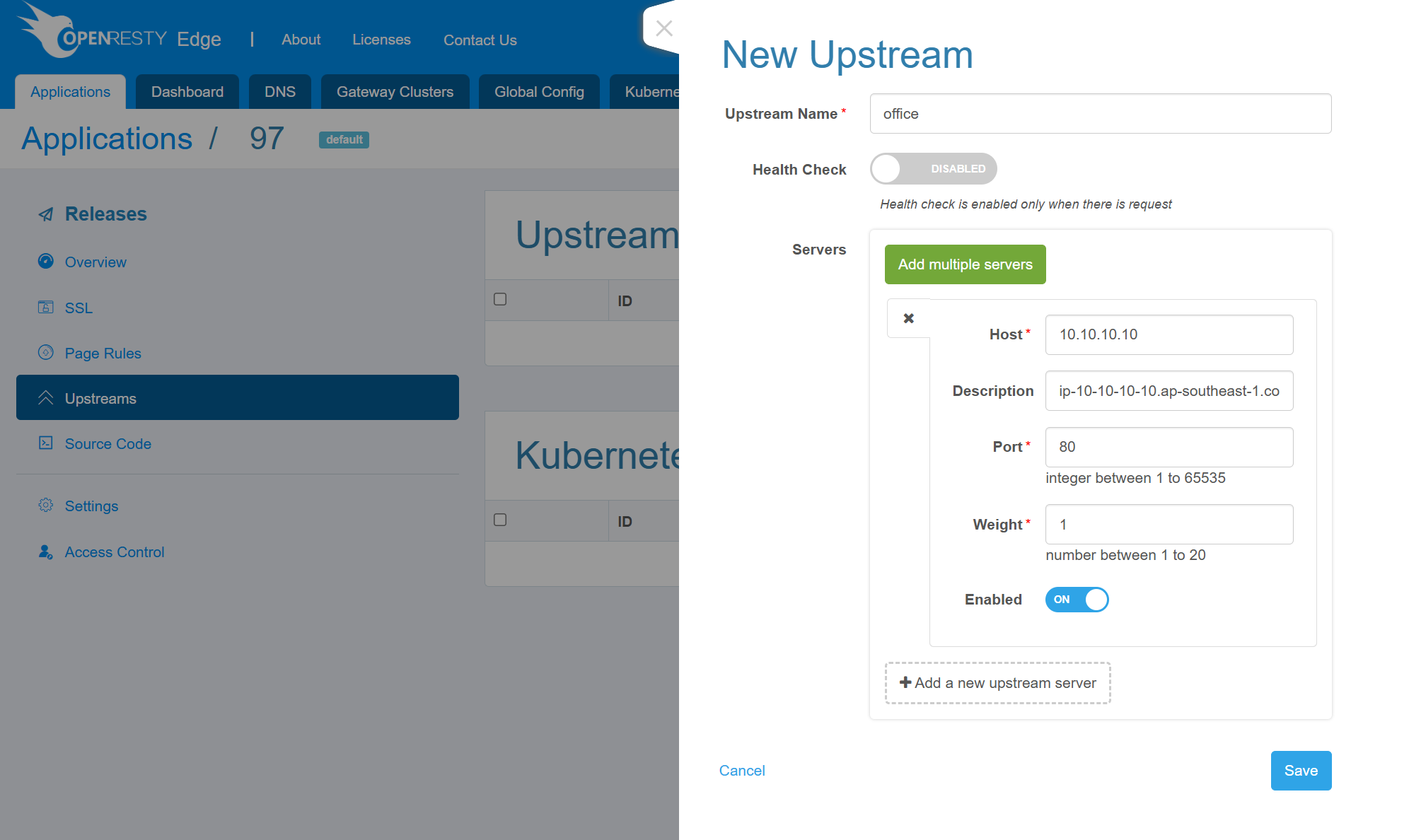
Click Save, and the upstream is created.
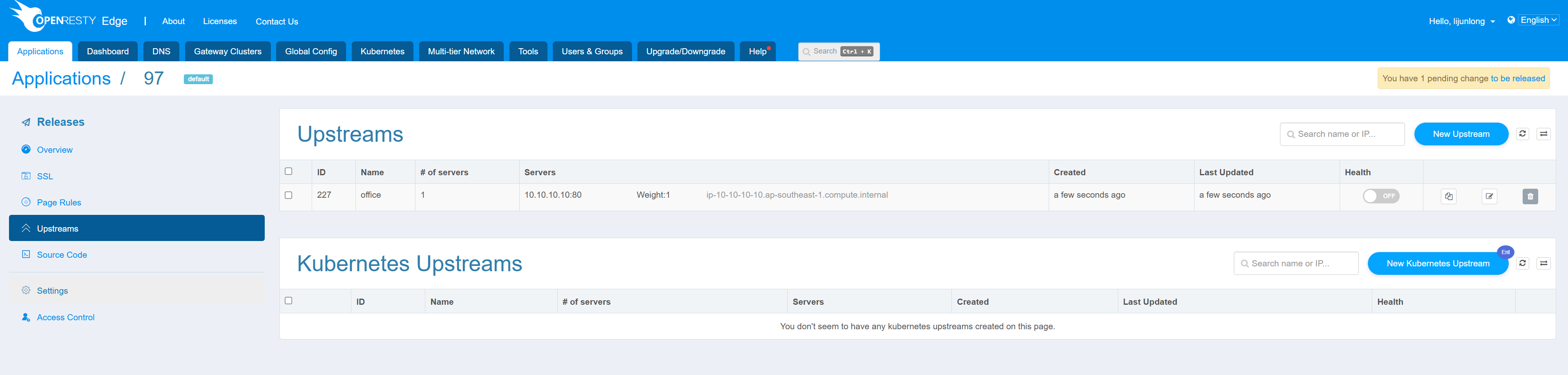
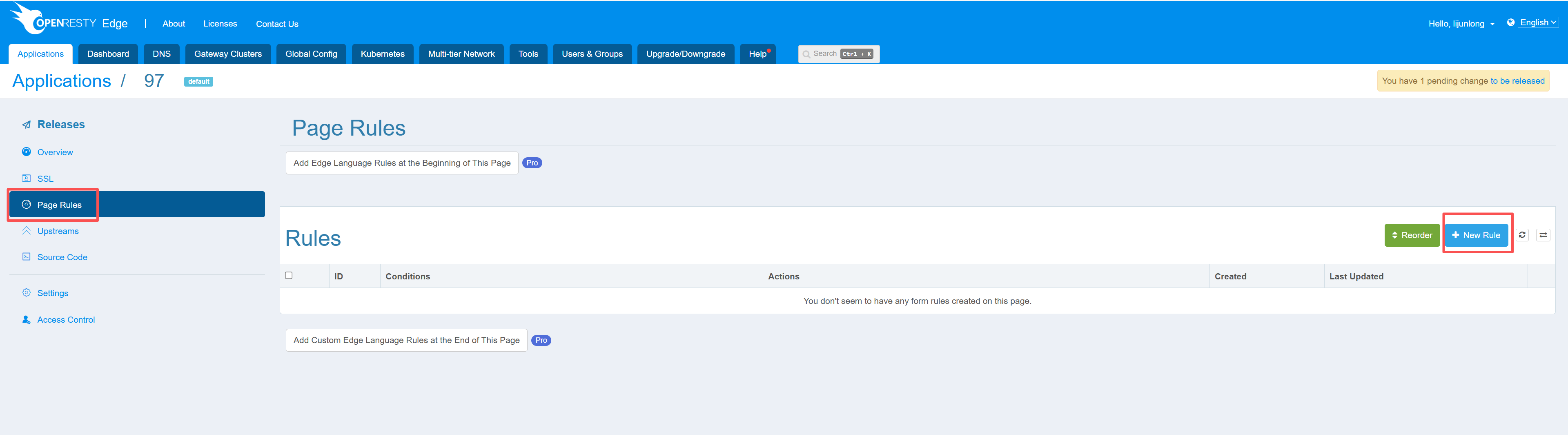
Next, enter the preprocessing phase, click New Rule, and we need to create a forwarding rule.
In the page rules, we can configure conditions, actions, and proxy rules. We enable proxy and select to proxy to the newly created upstream.
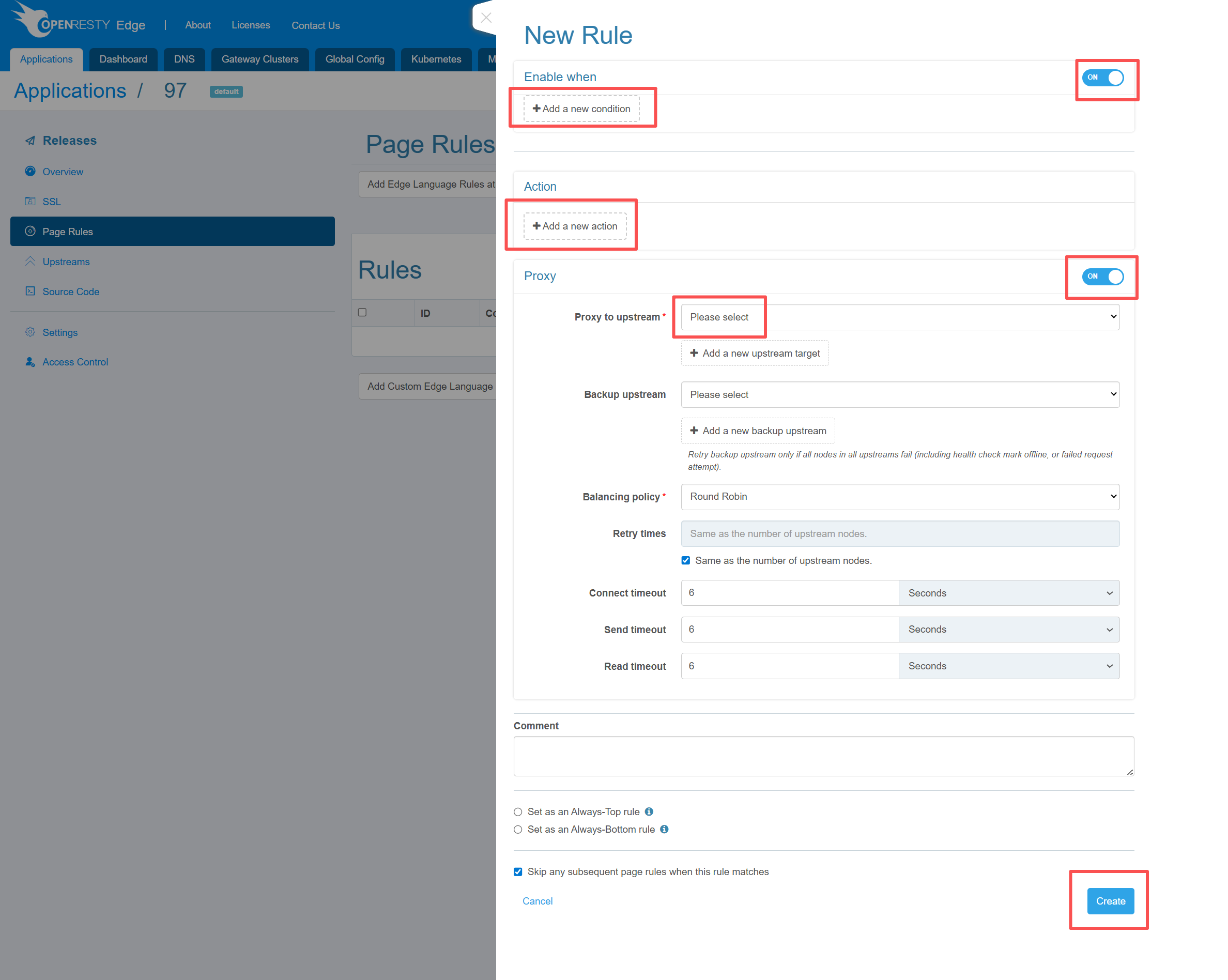
Click Save, and the new forwarding rule is created.
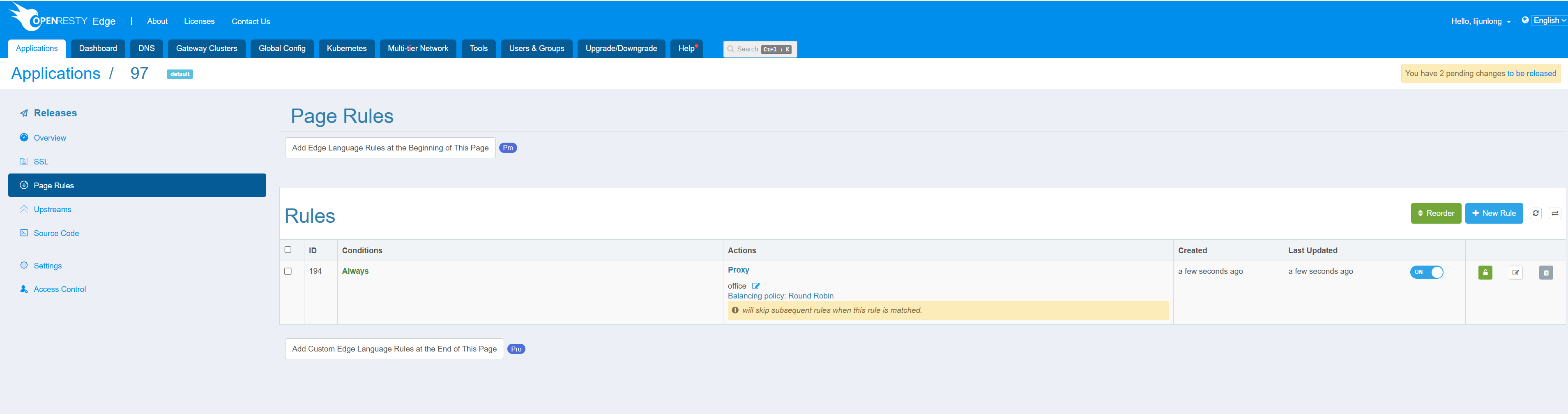
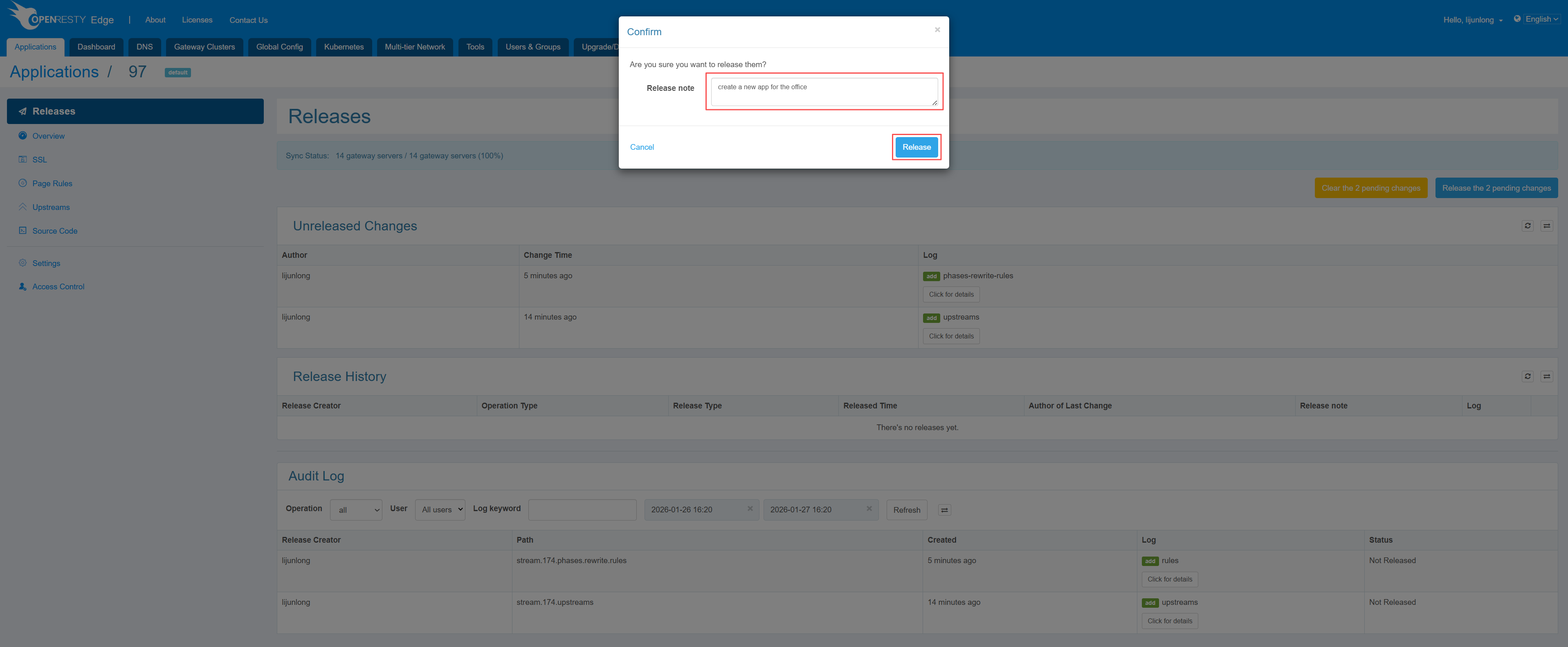
Next, we need to publish these configuration changes. Navigate to the release page, where we can see the unpublished configuration changes.
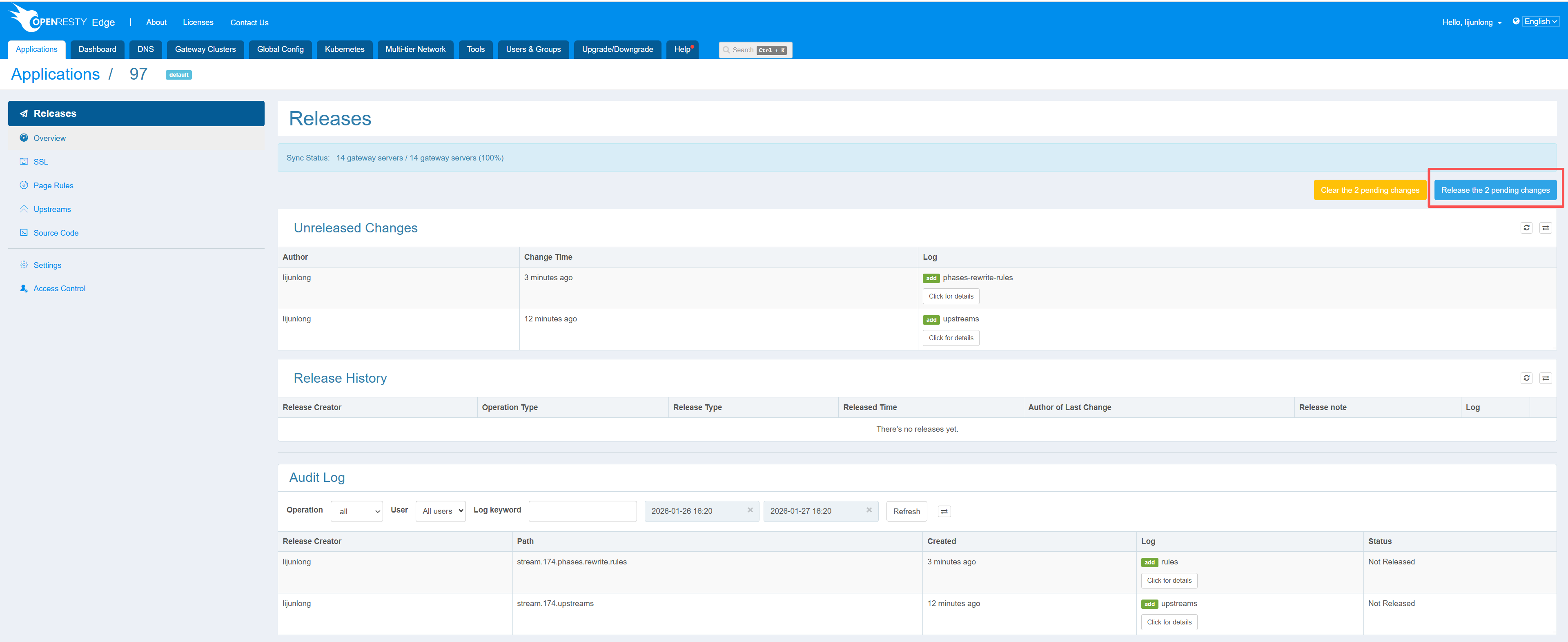
Click the Publish button, optionally enter some notes, then click Publish. Soon these configurations will be synchronized to the gateway nodes of the corresponding partition, and an SSL/TLS offloading service is now running.