CC Attack Logs
CC attack logs record when OpenResty Edge CC protection rules are triggered. Use these records to identify abnormal sources, analyze attacked URIs, and tune rate-limiting thresholds and rejection actions from actual traffic. Enable these logs when you configure CC Attack Protection.
Enable CC attack logs
In Edge Admin, open Global Config > Logs and locate the CC attack log settings:
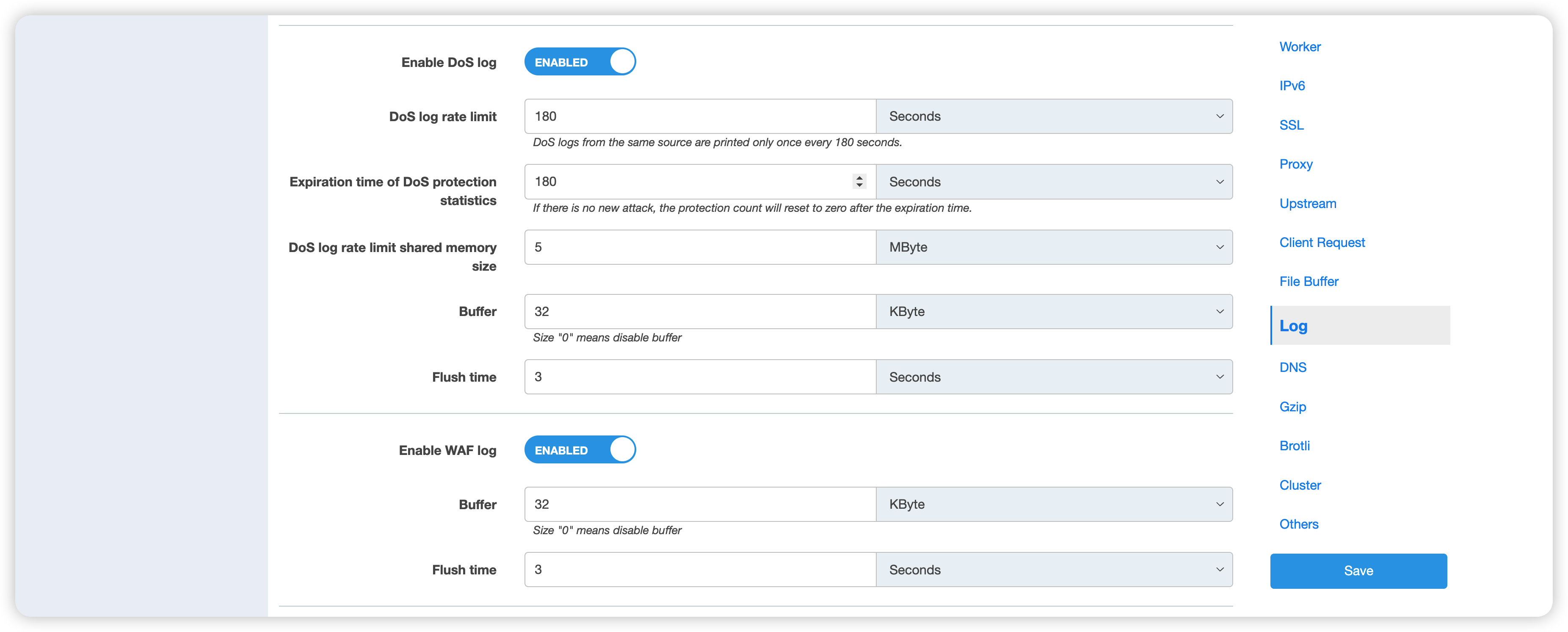
Enable CC Logs and configure the following parameters for your traffic:
- CC log rate limit: Controls how frequently records are written for the same request source. Because a CC attack usually produces a large number of requests, this setting avoids writing an entry for every request.
- CC protection statistics expiration time: Resets the protection count for a request source when no new attack request arrives within this period. The protection count can also be used in dynamic metrics.
- CC log rate-limit shared memory size: Sets the shared memory capacity used to store client addresses or other request-source identifiers. Size it for the expected number of sources and available memory.
- Buffer: Writes records to a buffer first. Records are written to the log file when the buffer is full or the flush interval is reached.
- Flush interval: Sets the maximum time that buffered records wait before being written to the log file.
A log rate limit that is too low can produce many duplicate records and increase disk writes. A value that is too high can hide changes in attack frequency. Tune it gradually from the normal traffic baseline and expected attack volume.
View CC attack logs
After configuring and releasing a CC protection rule, use controlled test traffic to verify logging. The following example limits the same client to one request per minute:
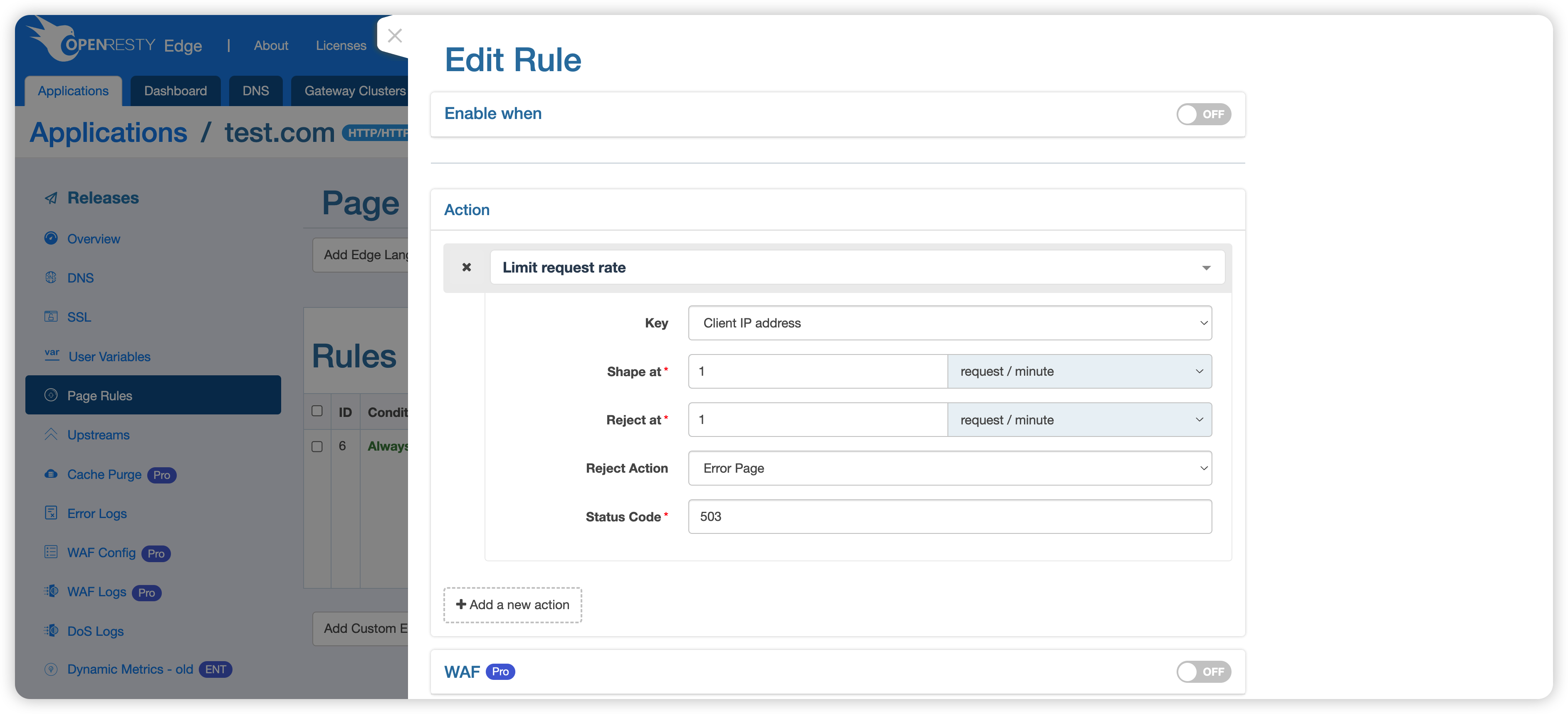
Send two consecutive requests:
curl 'http://test.com'
curl 'http://test.com'
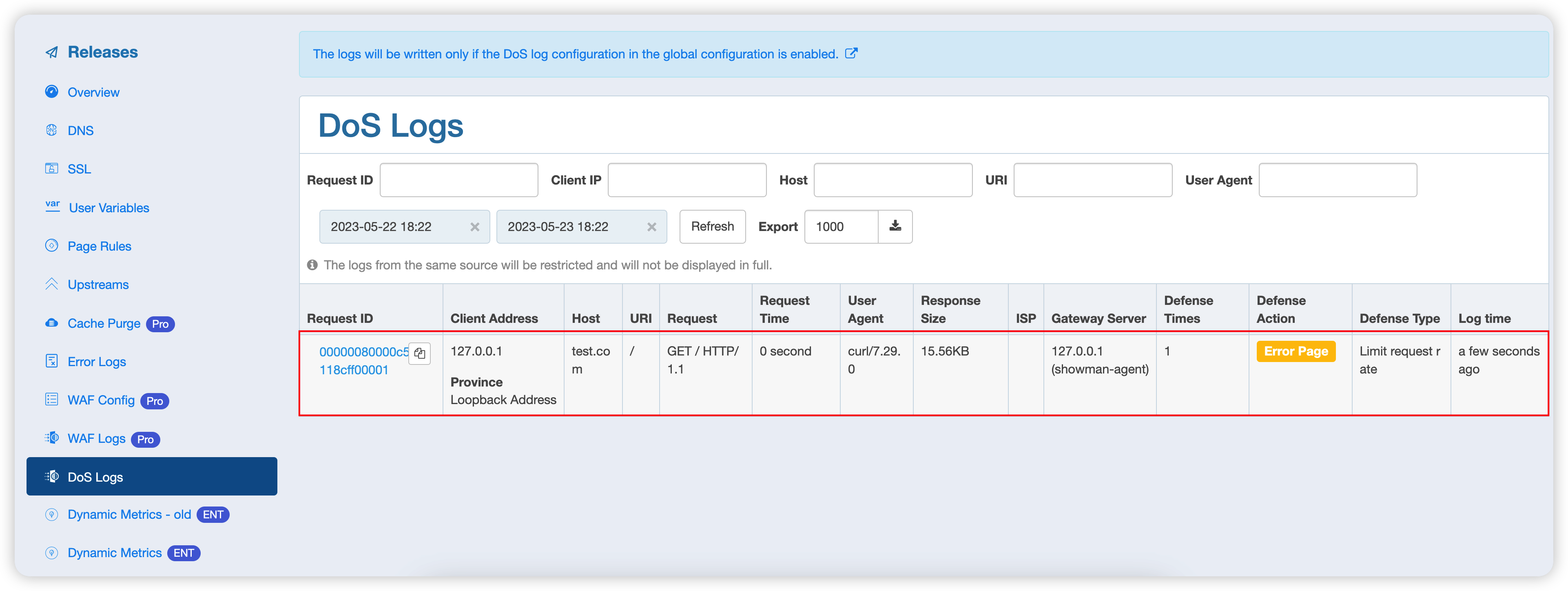
The second request triggers the rejection action and generates a CC attack log. Open Application > CC Logs to view the record:
Tune protection rules with logs
When reviewing logs, focus on the request source, target URI, trigger frequency, and handling result:
- If many legitimate users share the same egress IP, combine the URI, Cookie, or another trusted identifier to reduce false positives caused by counting only the client IP address.
- If a high-cost URI is attacked continuously, narrow the page rule scope and configure a dedicated threshold for that URI.
- If the log volume remains too high, increase the CC log rate limit or adjust the buffer settings. Do not relax protection thresholds solely to reduce logging.
- After changing a rule, test normal requests, threshold handling, and recovery after the limit expires, and confirm that the logs reflect each state.