Gzip Compression
This document explains in detail how to configure and use Gzip compression in OpenResty Edge.
Configuration Hierarchy Overview
OpenResty Edge provides Gzip compression configuration at multiple levels. Listed from highest to lowest priority:
- Page rule configuration: Applications > HTTP Application > a specific application > Page Rules > Actions > Enable Gateway Gzip / Set Gzip Type
- Global custom action configuration (referenced by an HTTP application): Global Configuration > Global Custom Actions > Actions > Enable Gateway Gzip / Set Gzip Type
- App settings configuration: Applications > HTTP Application > a specific application > Settings > Gzip
- Global rewrite rule configuration: Global Configuration > Global Rewrite Rules > Actions > Enable Gateway Gzip / Set Gzip Type
- Global general configuration: Global Configuration > General Configuration > Gzip Configuration (enabled by default)
Note: When multiple levels are configured at the same time, the higher-priority configuration overrides the lower-priority one.
Global General Configuration
The global general configuration is the base configuration for Gzip compression, providing the default compression parameters for the entire system.
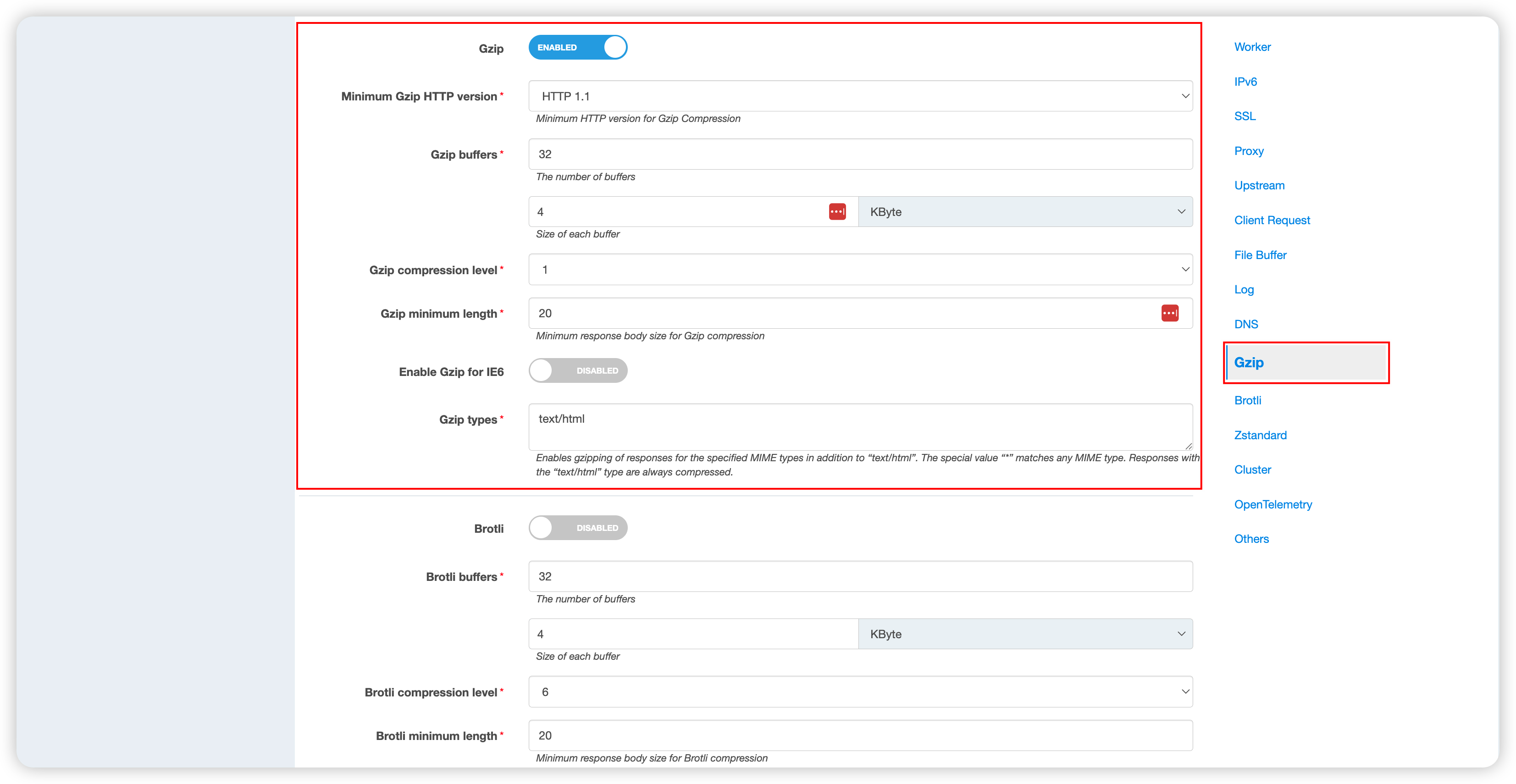
Configuration Parameters
| Item | Default | Description |
|---|---|---|
| Gzip switch | On | Globally enable or disable Gzip compression |
| Gzip buffers | 32 x 4KB | Size of the buffers used during compression; affects memory usage |
| Gzip compression level | 6 | Compression level (1-22); a higher value gives a better compression ratio but is slower |
| Gzip minimum length | 1000 bytes | Compression is applied only when the response body exceeds this threshold This limit is ignored for chunked transfer (Transfer-Encoding: chunked) |
| Gzip compressed content types | See the list below | Specifies the MIME types to compress with Gzip |
Default Compression Types
By default, the system enables Gzip compression for the following MIME types:
text/plain
Tip: The
text/htmltype is included in the compression scope by default and does not need to be listed here again.
Global Rewrite Rule Configuration
Global rewrite rules let you configure Gzip compression for requests that match specific conditions.
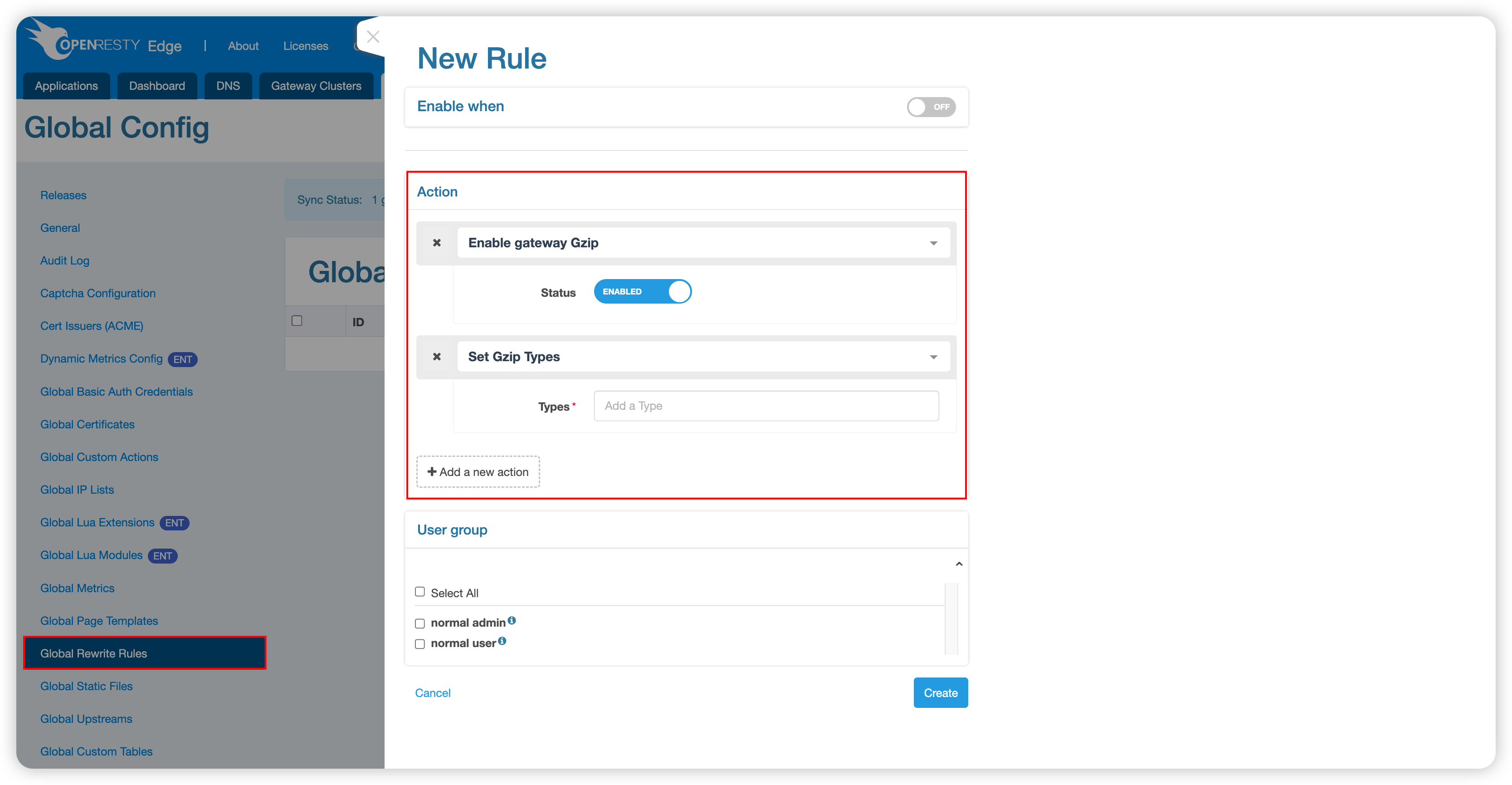
Available Actions
- Enable Gateway Gzip: Dynamically enable or disable Gzip compression
- Set Gzip Compression Type: Customize the MIME types to compress
Note: The compression types set here do not include
text/htmlby default. If you need to compress HTML content, add it manually.
Global Custom Action Configuration
Custom actions provide a reusable Gzip compression configuration that can be referenced by multiple applications.
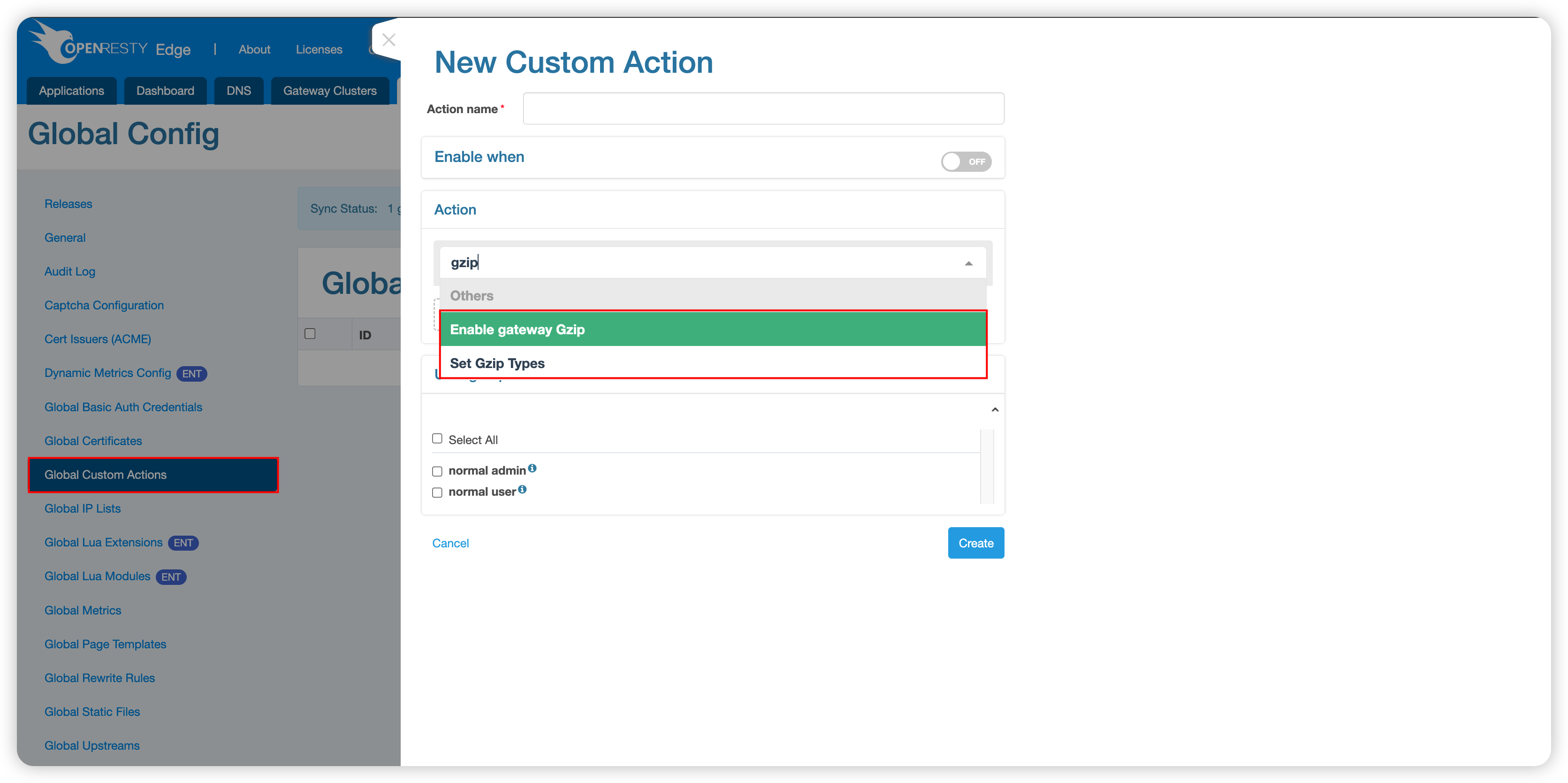
The configuration is the same as for global rewrite rules, but has a higher priority.
Application-Level Configuration
In the app settings, you can configure a Gzip compression policy for a specific application.
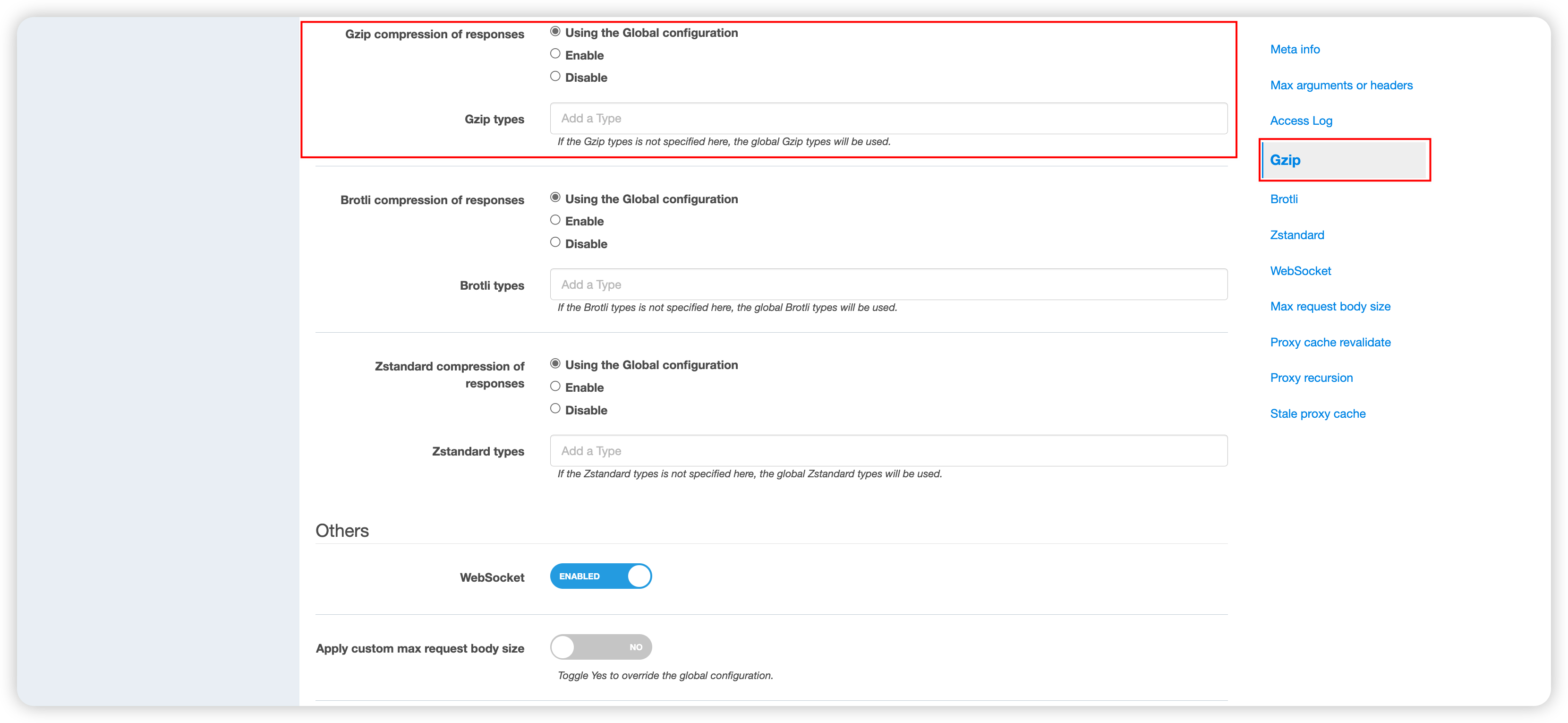
Configuration Options
- Follow global: Use the setting from the global general configuration
- Enable: Enable Gzip compression for the current application
- Disable: Disable Gzip compression for the current application
Page Rule Configuration
Page rules provide the most fine-grained control over Gzip compression, allowing configuration for specific URL paths or conditions.
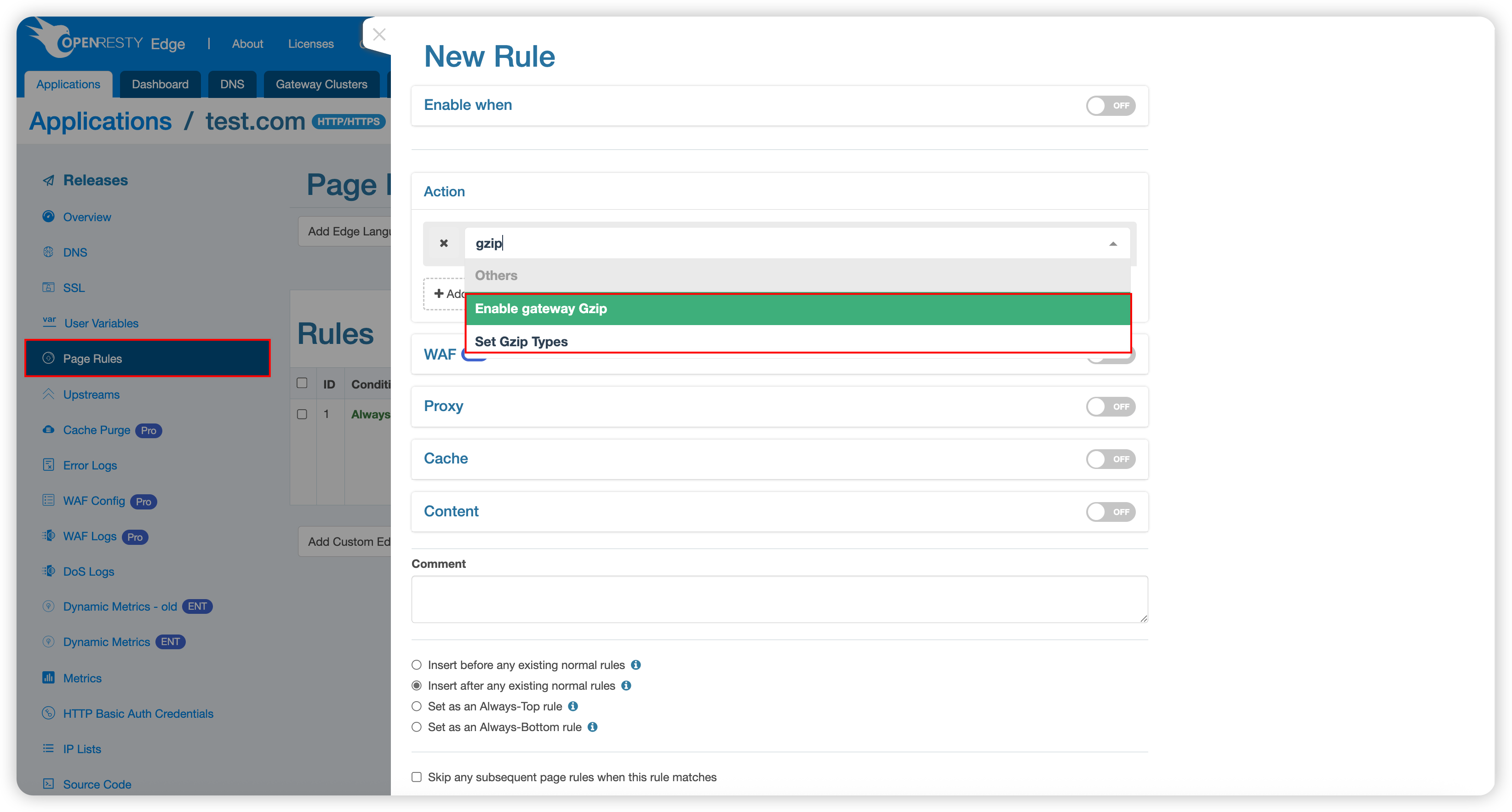
The configuration is the same as for global rewrite rules, but has the highest priority.
Practical Example
The following example demonstrates the actual effect of Gzip compression.
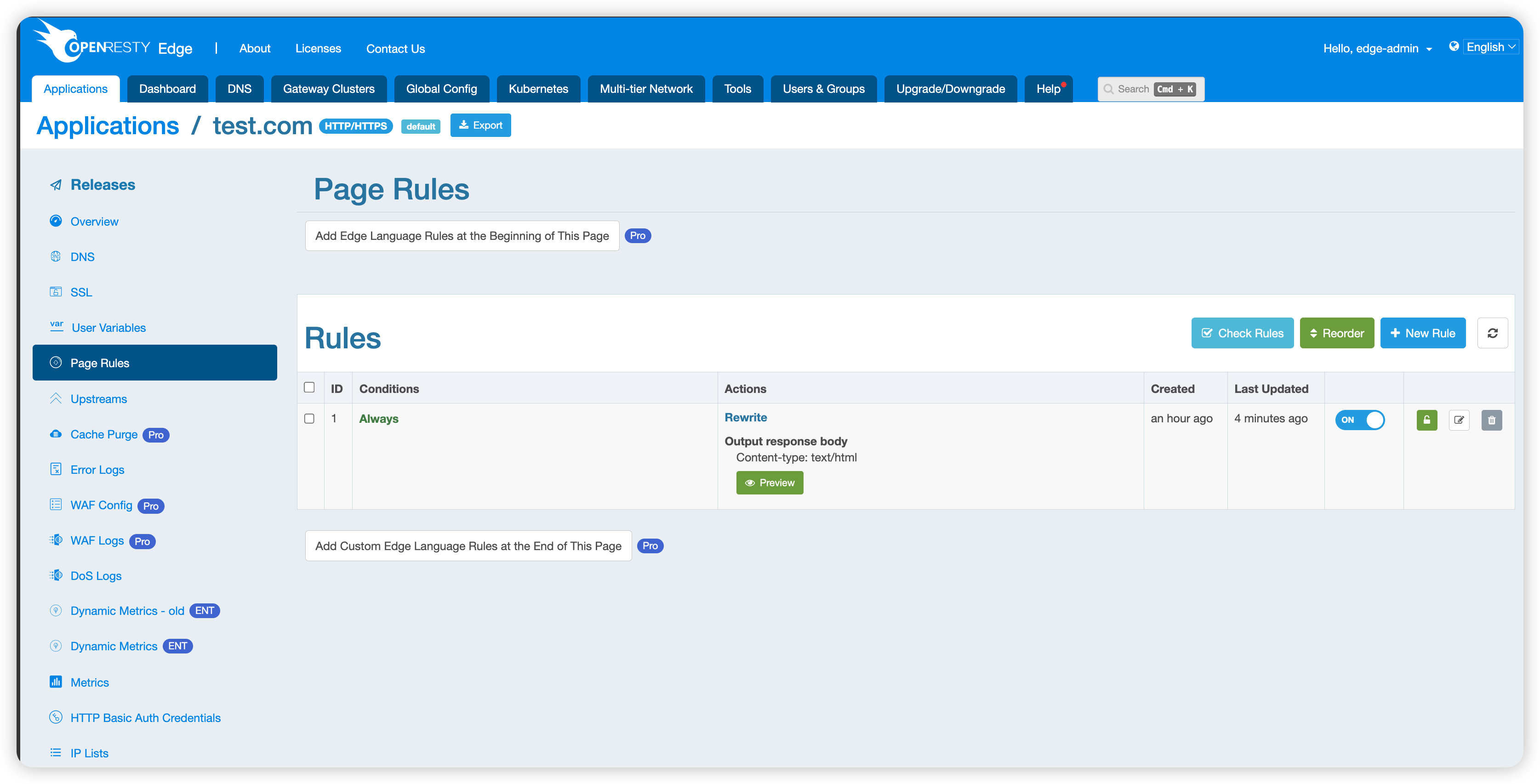
Test Scenario
The example configures a simple page rule that responds directly with the text “Hello World”. Because the global general configuration enables Gzip compression by default, no additional configuration is needed.
Compression Effect Test
Request with Gzip compression enabled:
$ curl test.com/enable --resolve test.com:80:127.0.0.1 -H 'Accept-Encoding: gzip' -v
*   Trying 127.0.0.1:80...
* Connected to test.com (127.0.0.1) port 80 (#0)
> GET /enable HTTP/1.1
> Host: test.com
> User-Agent: curl/7.76.1
> Accept: */*
> Accept-Encoding: gzip
>
* Mark bundle as not supporting multiuse
< HTTP/1.1 200 OK
< Content-Type: text/html
< Transfer-Encoding: chunked
< Connection: keep-alive
< Req-ID: 0000008000046f7f9e280008
< Content-Encoding: gzip
<
Warning: Binary output can mess up your terminal. Use "--output -" to tell
Warning: curl to output it to your terminal anyway, or consider "--output
Warning: <FILE>" to save to a file.
The response header includes Content-Encoding: gzip, confirming that compression is in effect.
Request without Gzip compression:
$ curl test.com/enable --resolve test.com:80:127.0.0.1 -v
*   Trying 127.0.0.1:80...
* Connected to test.com (127.0.0.1) port 80 (#0)
> GET /enable HTTP/1.1
> Host: test.com
> User-Agent: curl/7.76.1
> Accept: */*
>
* Mark bundle as not supporting multiuse
< HTTP/1.1 200 OK
< Date: Fri, 30 May 2025 08:42:51 GMT
< Content-Type: text/html
< Transfer-Encoding: chunked
< Connection: keep-alive
< Req-ID: 0000008000046f7fac58000b
<
Hello World
When the request does not include the Accept-Encoding: gzip header, the server returns the original, uncompressed content.
Additional Notes
When Gzip, Brotli, and zstd compression are enabled at the same time, the priority order is zstd > Brotli > Gzip.